- Home
- User guide
The RBS Nidhi app, step by step.
How to sign in, get your membership card, complete your KYC, take a loan and repay it: what to tap on each screen, and what happens next.
Four stages, one after another
Once you sign in, the app's Home screen shows how far you have come. Finish one stage and the next one opens.
- ProfileA few details about you
- CardChoose and pay for your membership card
- KYCConfirm your identity and bank account
- LoansRequest a loan, receive it and repay it
The pictures in this guide are taken from the app with made-up names. Amounts and payment details are hidden in them: your app shows your own.
Keep these at hand
Everything happens in the app, on your phone. With these ready, signing up and your KYC take only a few minutes.
Your phone
- The mobile number you will use: we text your sign-in codes to it
- Chrome on Android, or Safari on iPhone
- The 6-digit code of your CSP outlet
- Its camera, for your KYC selfie
- Your location (GPS) switched on for your KYC and when you ask for a loan
For your KYC
- Your Aadhaar number, and the mobile number linked to it: DigiLocker sends an OTP to it
- Your PAN
- Your bank account number and IFSC
- With a Crown card: your business name, type and address, and your shop with its signboard for a photo
For payments
- A UPI app, or net banking
- The UTR / transaction ID of each payment you make
- A screenshot or receipt of each payment
Your KYC needs no documents to upload: your Aadhaar, PAN and bank account are checked in the app. A payment receipt is a photo or PDF of up to 10 MB.
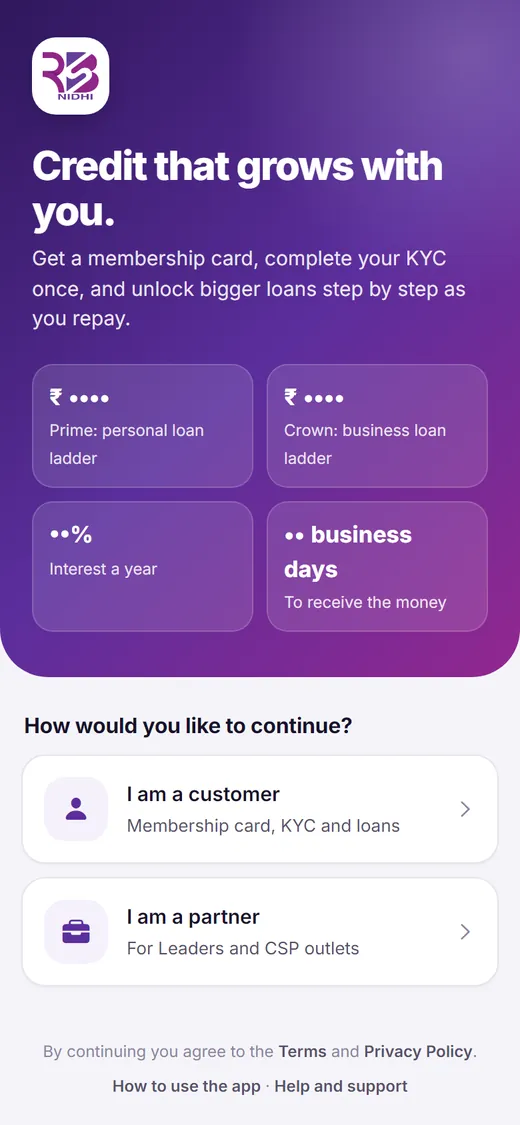
Open the app in your browser
The RBS Nidhi app runs in your phone's web browser, so there is nothing to download. Add it to your home screen and it opens like any other app.
-
1
Go to app.rbsnidhi.com
On your phone, open Chrome (Android) or Safari (iPhone) and go to app.rbsnidhi.com. Every sign-in and apply button on this website takes you there too.
-
2
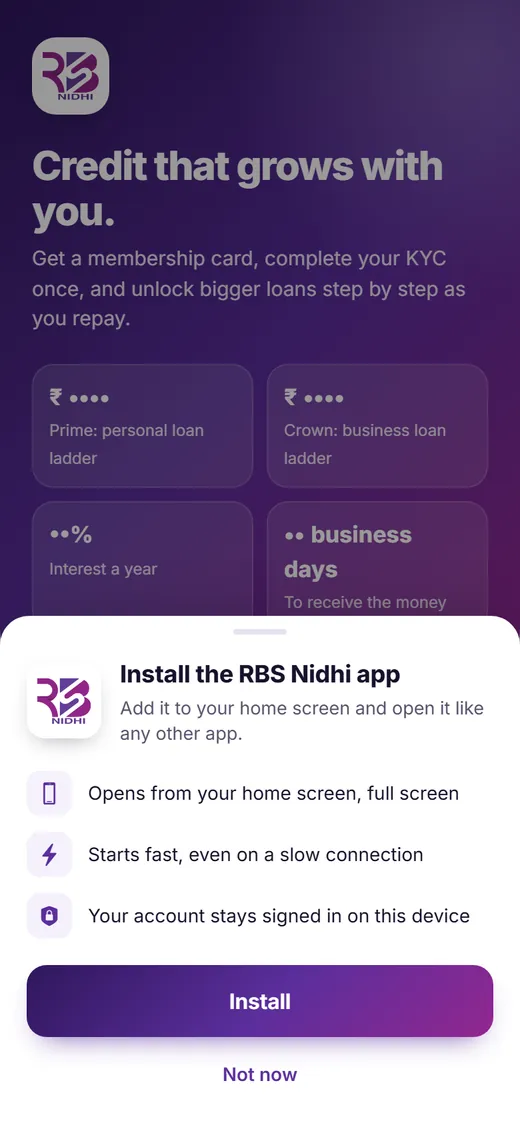
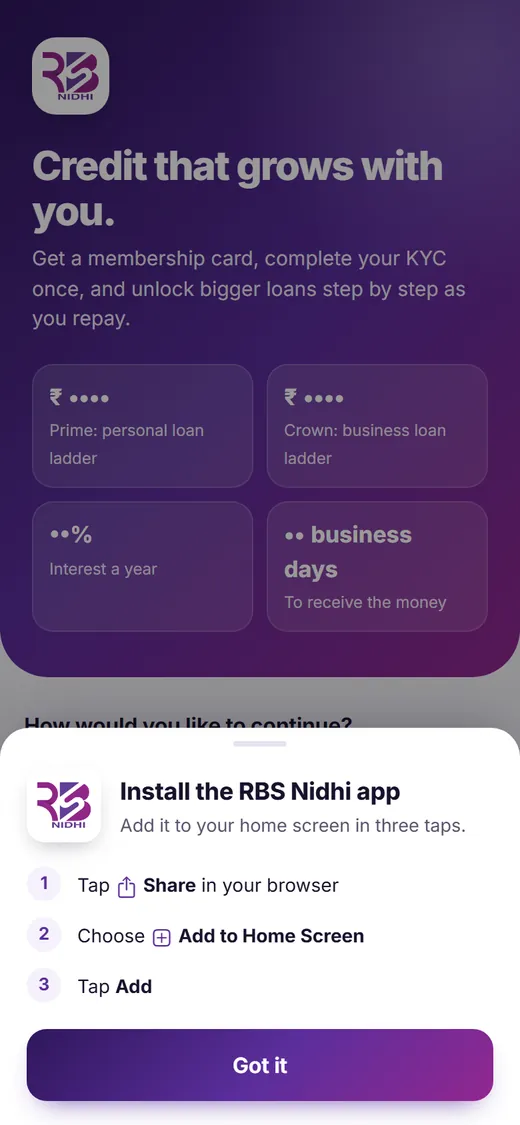
Add it to your home screen
On Android, tap Install when the app offers it. On iPhone, tap Share, then Add to Home Screen, then Add. From then on, open RBS Nidhi from its icon.
-
3
Choose “I am a customer”
The first screen asks how you would like to continue. Leaders and CSP outlets choose I am a partner instead, and have their own guide.
Sign in with your mobile number
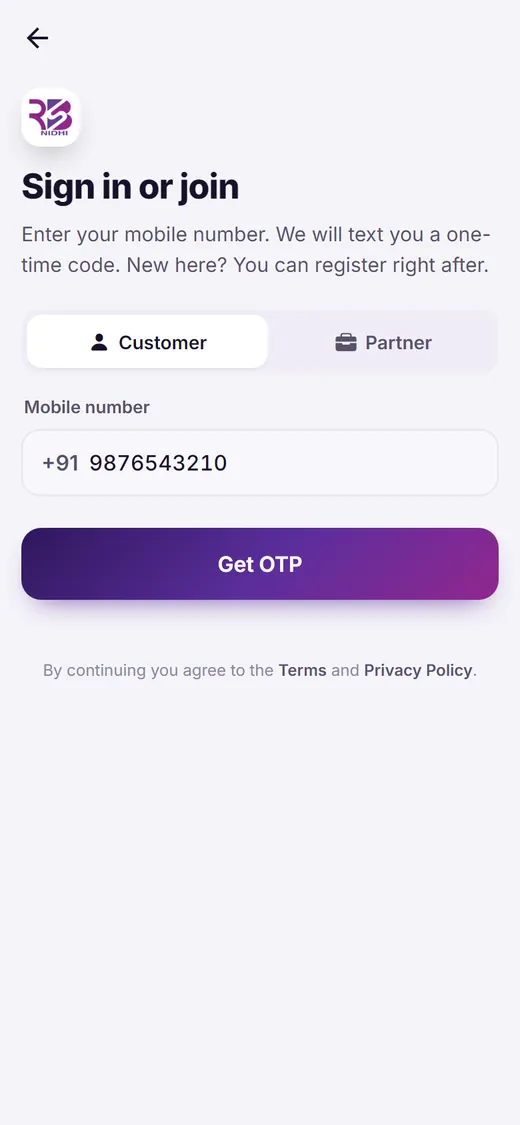
There is no password to remember. Each time you sign in, we text a one-time code (OTP) to your mobile number.
-
1
Enter your mobile number
Type your 10-digit mobile number and tap Get OTP.
-
2
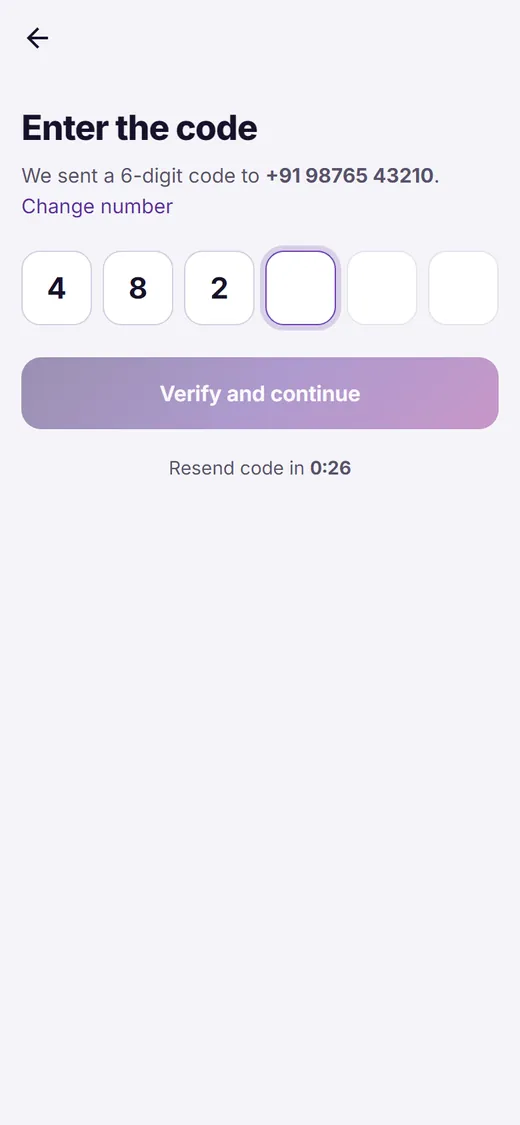
Enter the code
We text you a 6-digit code. Type it in and tap Verify and continue. Each code works for 10 minutes.
-
3
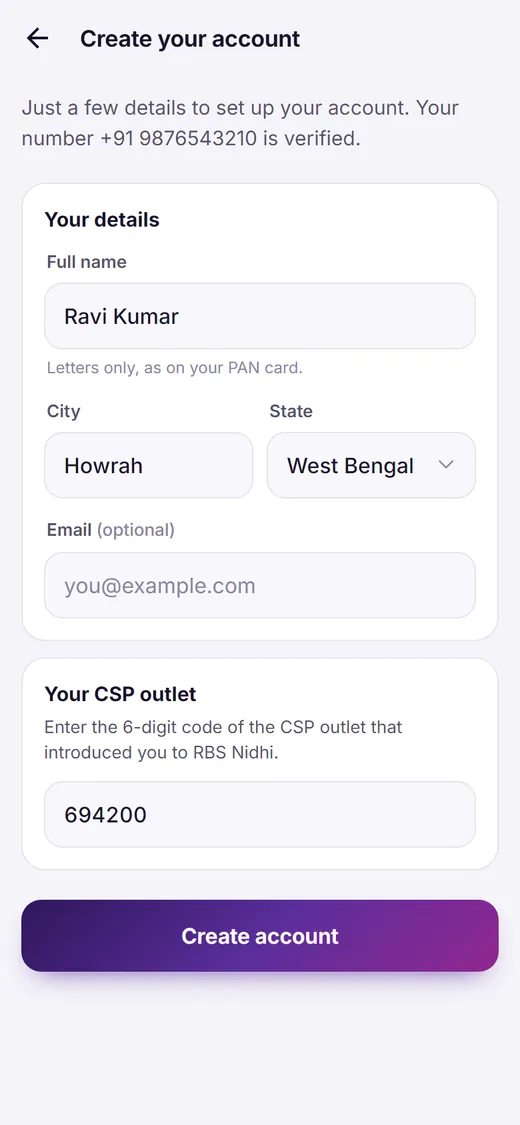
New here? Create your account
Enter your full name as it is on your PAN card, your city and state, and your email if you like. Then enter the 6-digit code of the CSP outlet that introduced you to RBS Nidhi, and tap Create account.
Complete your profile
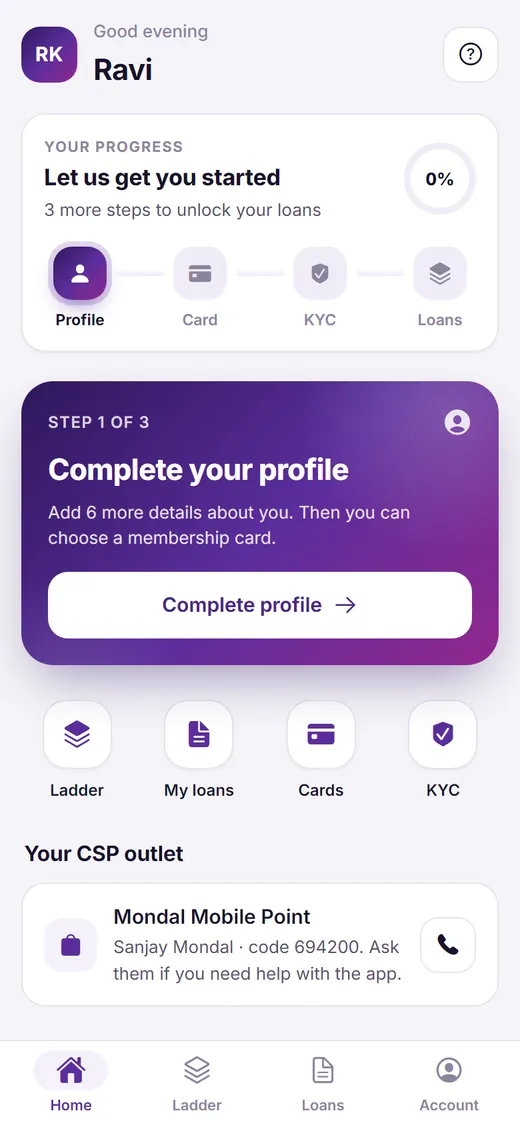
Your Home screen now shows your progress: Profile, Card, KYC and Loans. The first stage is your profile.
-
1
Tap “Complete profile”
You find it on the Home screen. Later, your profile is always under Account › Profile.
-
2
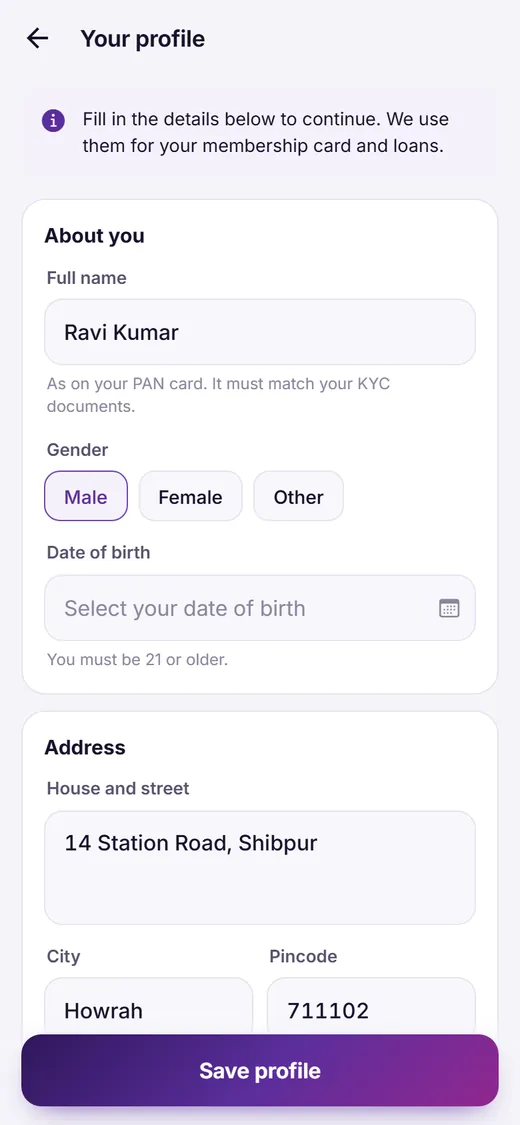
Fill in your details
- Your gender and date of birth: you must be 21 or older
- Your address: house and street, city, pincode and state
- Your employment and monthly income
- Another mobile number and an email address, if you like
-
3
Tap “Save profile”
The app then shows you the membership cards.
Get your membership card
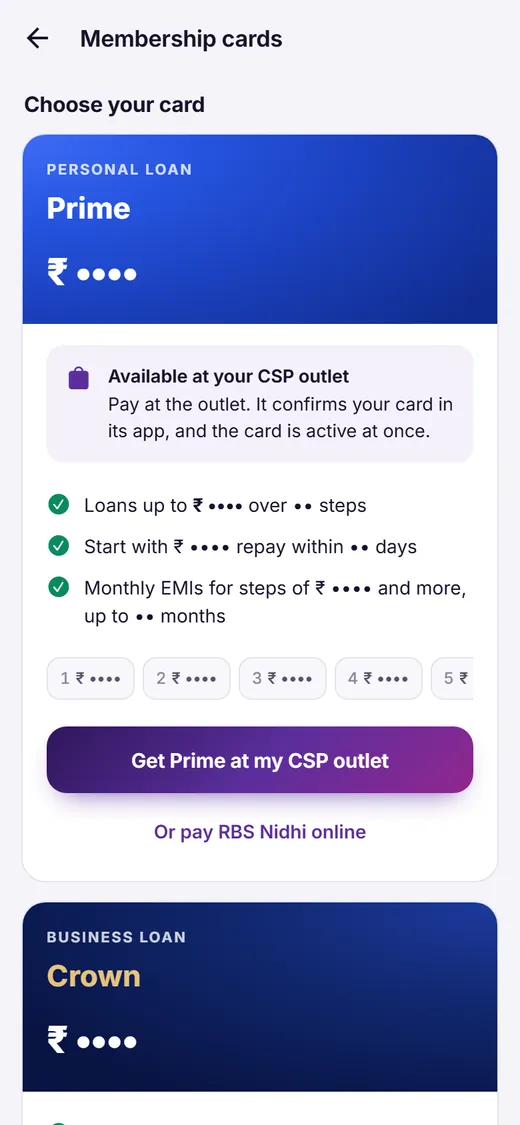
Your membership card opens your loan ladder. Choose Prime (₹1,999) for personal loans or Crown (₹3,499) for business loans. You can have one card, and it is valid for five years. Tap Compare cards on the Home screen, then get your card in one of three ways.
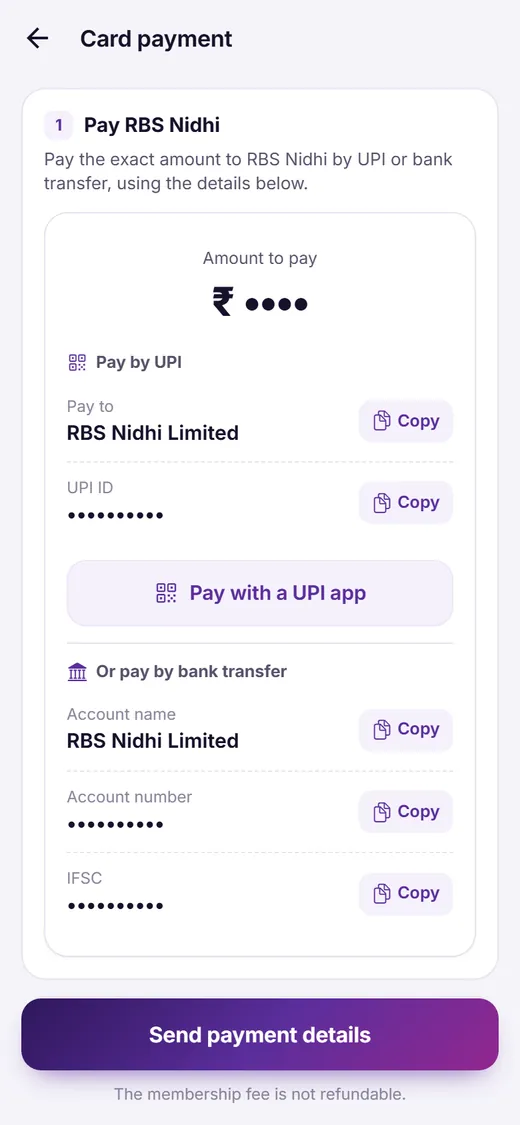
Pay RBS Nidhi in the app
Always available
- Tap Choose Prime or Choose Crown and confirm.
- Pay the exact amount shown to RBS Nidhi by UPI (tap Pay with a UPI app or copy the UPI ID) or by bank transfer to the account shown.
- Enter the UTR / transaction ID, add a screenshot or receipt, and tap Send payment details.
Our team checks your payment and activates your card, and we send you an SMS.
Buy it at your CSP outlet
When your outlet has the card
- Tap Get Prime at my CSP outlet (or Crown), then Send request.
- Pay your CSP outlet for the card.
- The outlet confirms your request in its app, and your card is active at once.
A request lasts 7 days. Until it is confirmed, you can tap Cancel request or Pay RBS Nidhi instead.
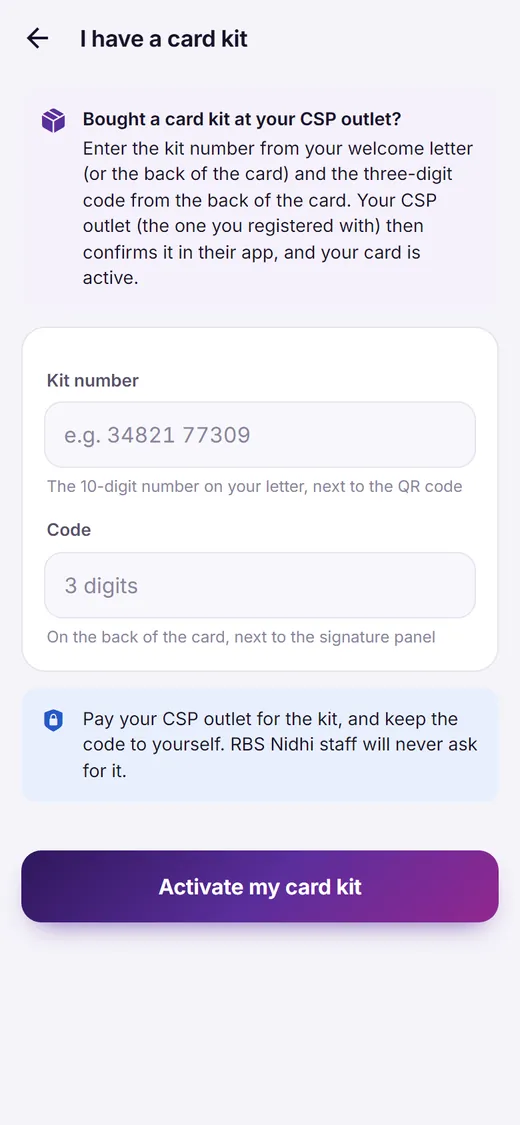
Activate a card kit
If you bought a printed card kit
- On the Membership cards screen, tap I have a card kit, or scan the QR code on your welcome letter.
- Enter the 10-digit kit number from your letter and the 3-digit code from the back of the card.
- Tap Activate my card kit. Your outlet confirms it once you have paid there for the kit.
Keep the code to yourself. RBS Nidhi staff will never ask for it.
- Once your card is active, open Account › Membership cards and tap View invoice.
- Sent a wrong UTR or receipt? On the same screen, tap View or correct payment details and send the right ones.
- The membership fee is not refundable. Please read our Refund Policy and Terms before you buy.
Complete your KYC
Your KYC opens as soon as your card is active. It confirms who you are, and the bank account your loans are paid into.
-
1
Tap “Start KYC”
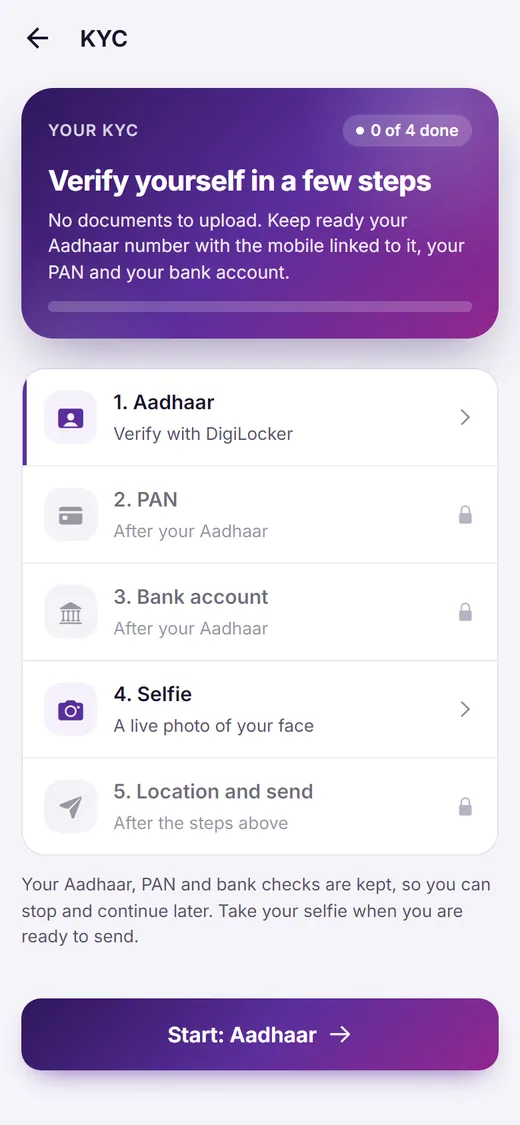
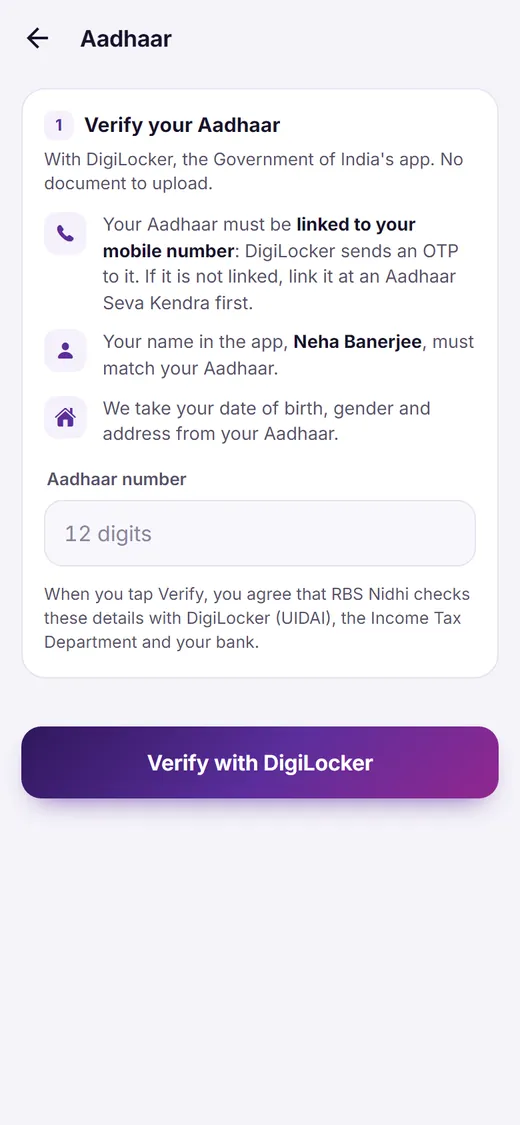
It is on the Home screen, and always under Account › KYC. The KYC screen lists your steps: tap Start: Aadhaar. You can stop at any time and carry on later.
-
2
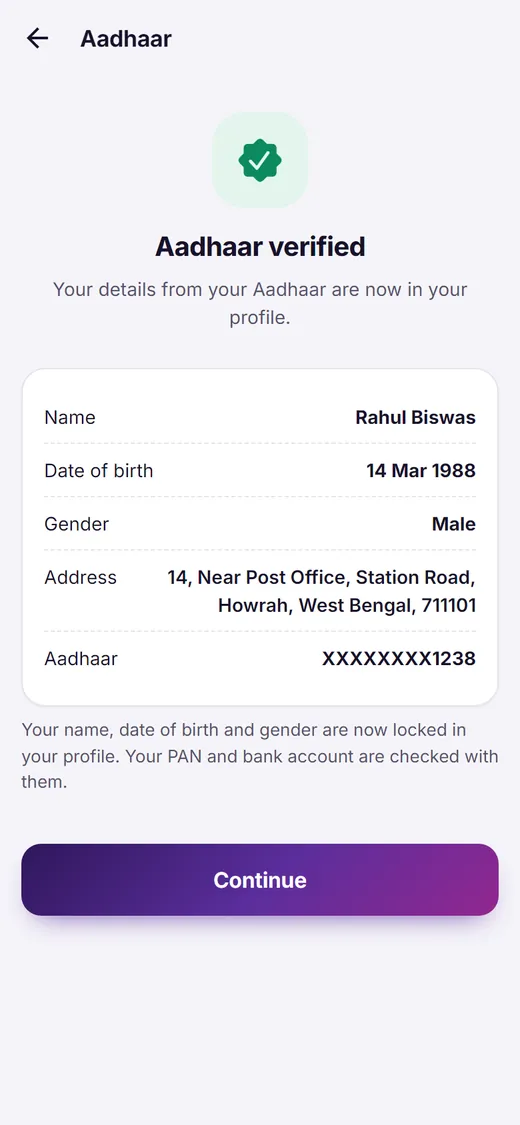
Your Aadhaar, with DigiLocker
Enter your Aadhaar number and tap Verify with DigiLocker. DigiLocker, the Government of India's app, opens: sign in with the OTP sent to the mobile number linked to your Aadhaar, and tap Allow to share your Aadhaar with RBS Nidhi. Then come back to the app: it checks your Aadhaar by itself. Your date of birth, gender and address are taken from your Aadhaar.
-
3
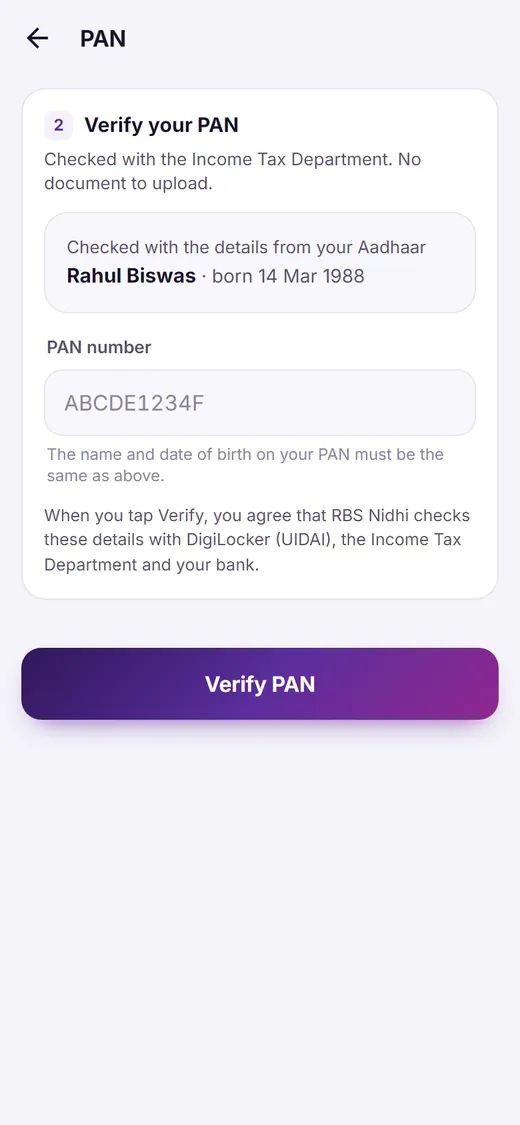
Your PAN
Enter your PAN and tap Verify PAN. It is checked with the Income Tax Department, with the name and date of birth from your Aadhaar. No document to upload.
-
4
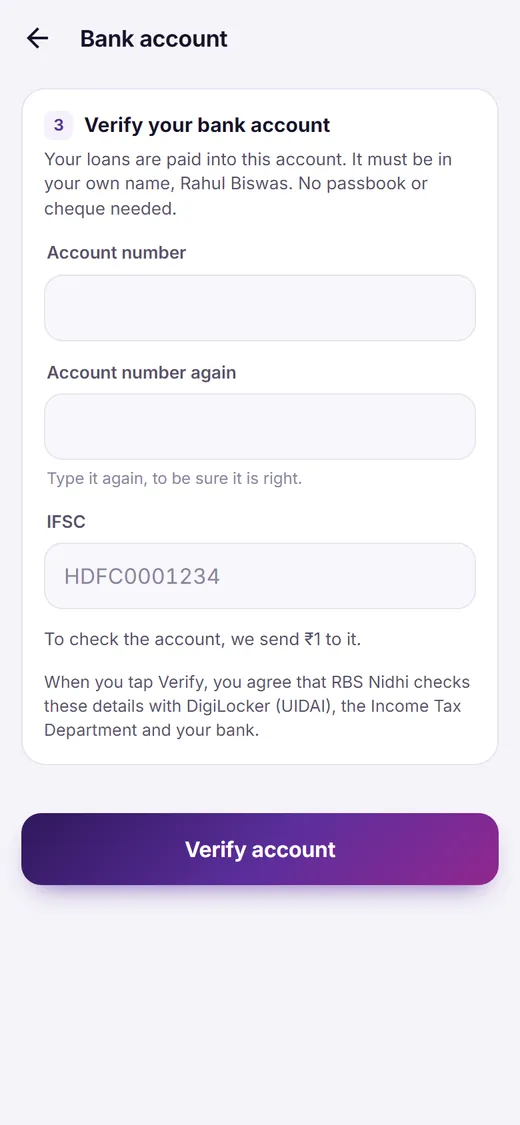
Your bank account
Enter your account number twice and the IFSC, and tap Verify account. To check the account, we send ₹1 to it. It must be in your own name: your loans are paid into this account.
-
5
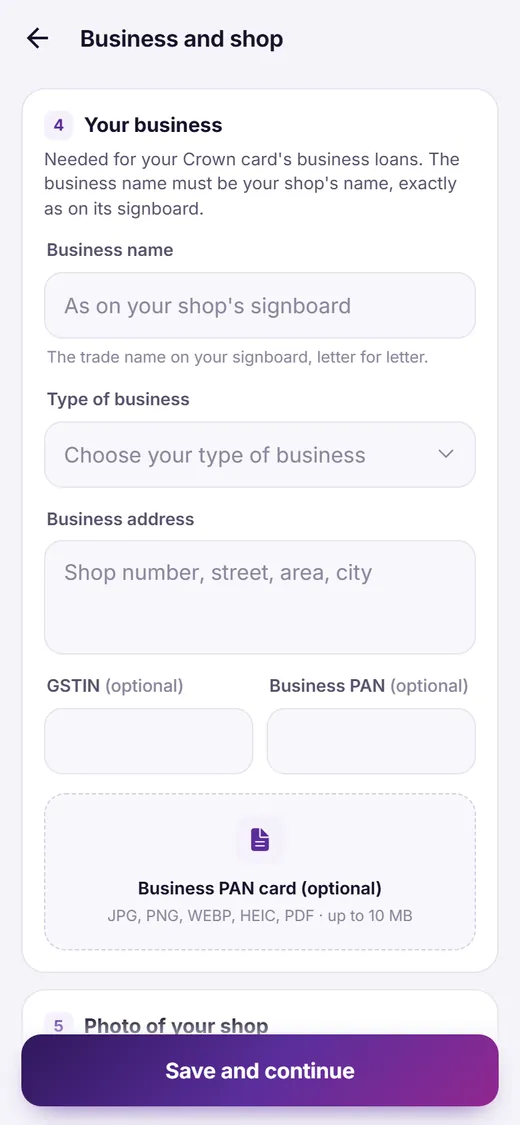
With a Crown card: your business and shop
Enter your business name exactly as it is on your shop's signboard, choose your type of business (or Other) and enter the address; GSTIN and business PAN are optional. Then take a photo of your shop in the app: stand outside, with the signboard and its name clear.
-
6
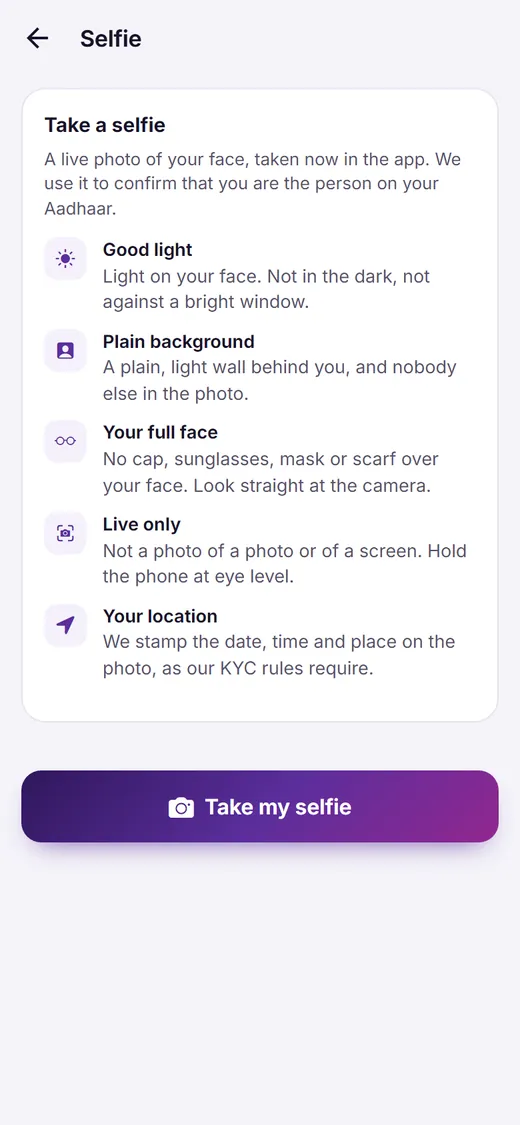
Your selfie
Tap Take my selfie. The camera opens in the app: allow it if your browser asks. Keep your face inside the outline, in good light, with no cap, sunglasses or mask, and tap Use this photo. The app adds the date, time and place to it.
-
7
Location and send
When every step is done, tap Location and send and allow your location: you can send your KYC only from India. Tick the box to confirm that your details and photos are yours and correct, and tap Send KYC. If every check has passed, your KYC is verified at once and your loan ladder opens. Otherwise our team checks it, and we send you an SMS when it is verified.
Request a loan and receive it
Your card comes with a loan ladder: a first loan, then bigger ones each time you repay. Your first loan opens 72 hours after your card is active, once your KYC is verified. The Home screen counts down to it.
-
1
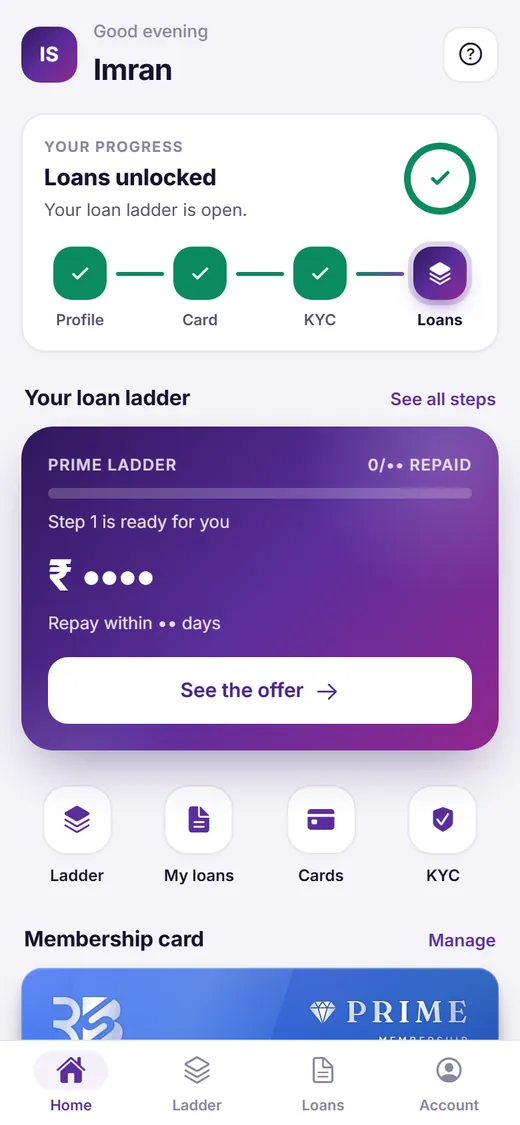
Open the offer
When a loan is ready for you, tap See the offer on the Home screen, or open the Ladder tab and tap See offer and request.
-
2
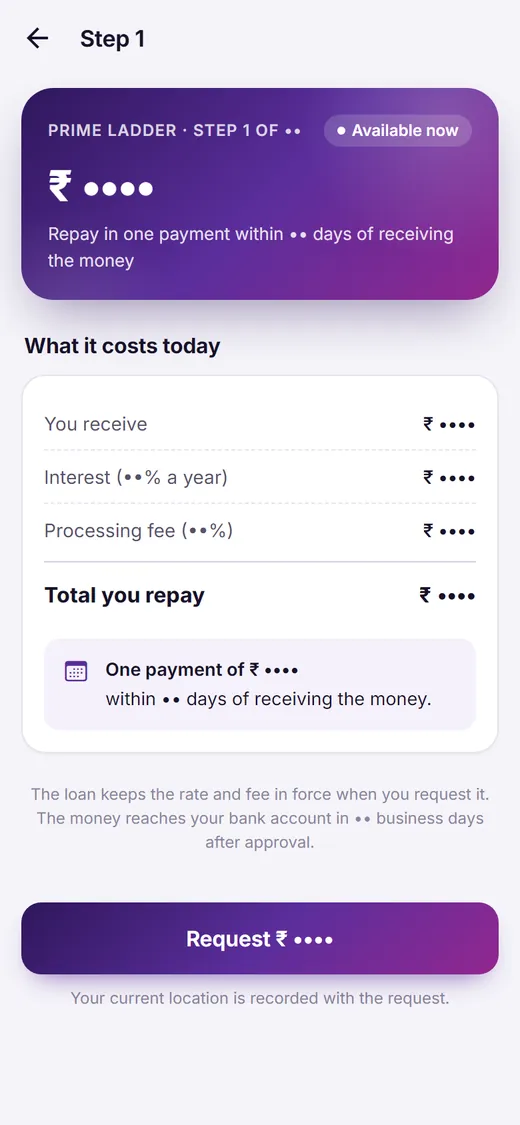
Check what it costs
The app shows what you receive, the interest, the processing fee and the total you repay. For a loan repaid in EMIs, choose the number of months and see your monthly payment.
-
3
Request it
Tap the Request button, which shows the loan amount, and confirm with Request loan. Allow your location when your phone asks: it is recorded with every loan request.
-
4
Wait for approval
The loan shows Waiting for approval while our team reviews it. We send you an SMS when it is approved.
-
5
Accept your loan documents
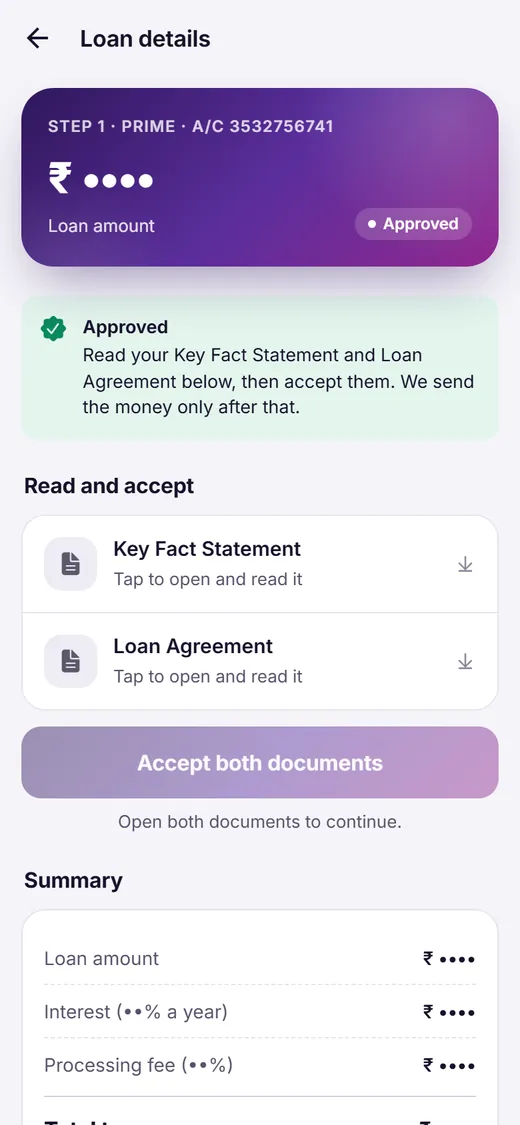
Open the loan, tap your Key Fact Statement and your Loan Agreement to read them, then tap Accept both documents. We send the money only after you accept them.
-
6
Receive the money
We transfer the full loan amount, with nothing deducted, to the bank account in your KYC, and send you an SMS. The disbursal process can take 3–5 business days.
Repay, and unlock the next loan
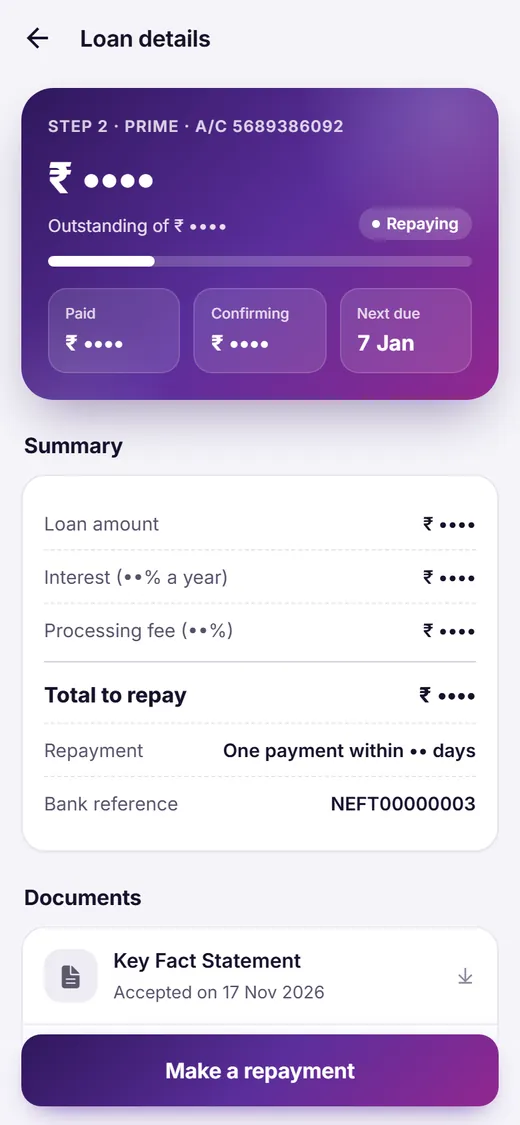
You repay by UPI or bank transfer into RBS Nidhi's own account, shown in the app, and then send us the payment details from the app.
-
1
Tap “Make a repayment”
Open the loan from the Loans tab, or tap Repay on the Home screen, and tap Make a repayment.
-
2
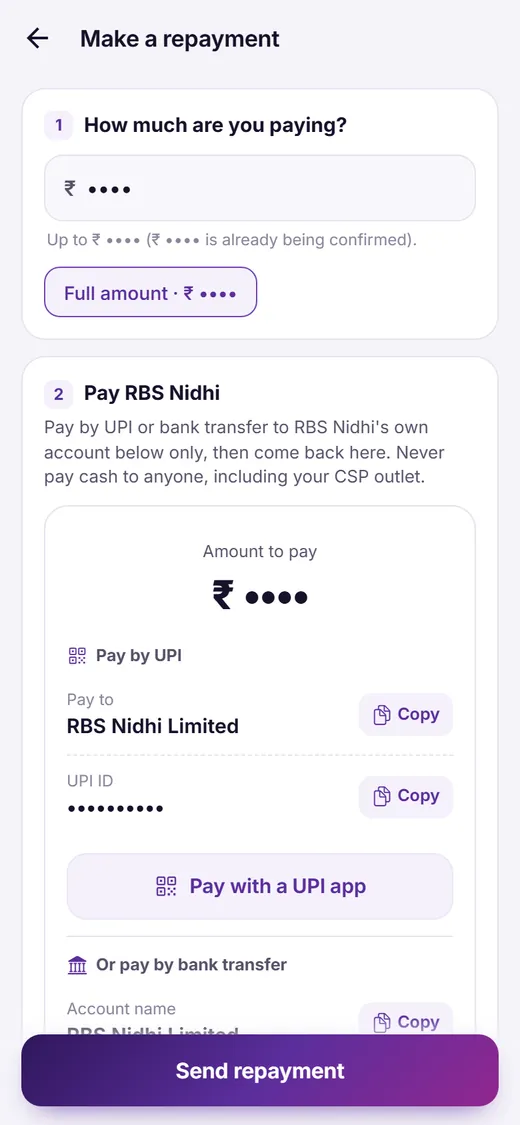
Choose the amount
Tap Next instalment or Full amount, or type the amount you are paying.
-
3
Pay RBS Nidhi
Pay that amount by UPI or bank transfer to the RBS Nidhi account shown on the same screen.
-
4
Send the payment details
Enter the UTR / transaction ID, add a screenshot or receipt, and tap Send repayment. It shows Being confirmed until our team confirms it, and then we send you an SMS.
-
5
Repaid in full: the next loan opens
The loan then shows Repaid, and the next step of your ladder opens 240 hours later. Your No Objection Certificate appears under the loan's Documents 5 business days later.
Find your way around the app
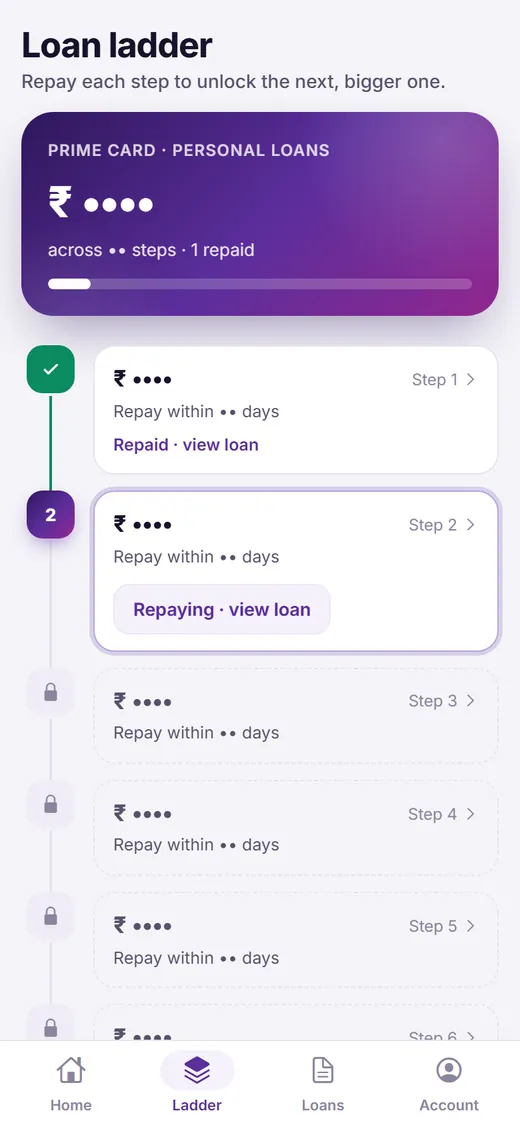
Four tabs at the bottom of the screen take you everywhere. To refresh a screen, pull it down.
Home
Your progress, your loan ladder at a glance, shortcuts to your cards and KYC, and your CSP outlet's details.
Ladder
Every step of your loan ladder: the ones you have repaid, the one you can request, and when the next one opens.
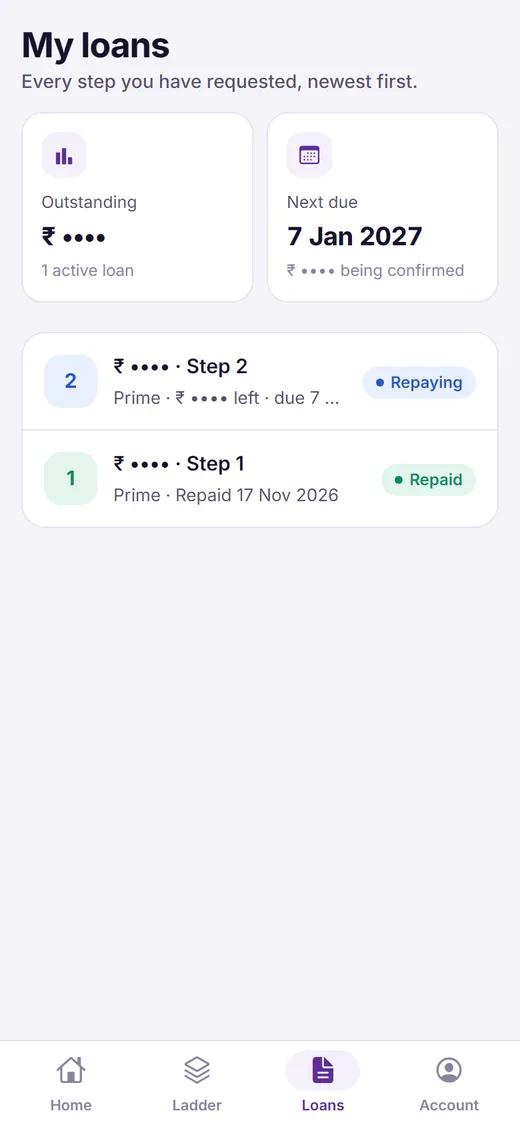
Loans
Every loan you have requested, newest first, with what is left to pay and your next due date.
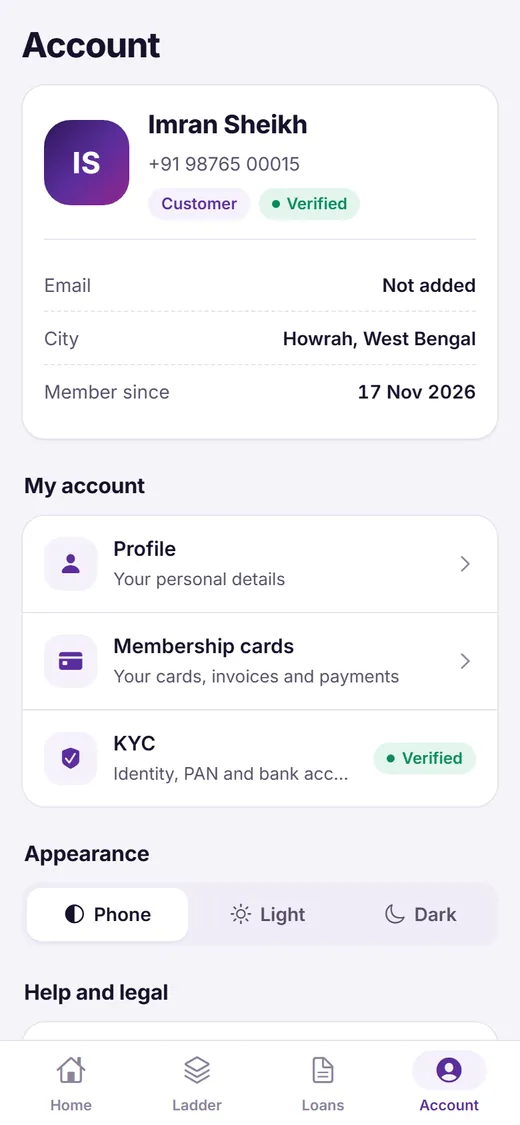
Account
Your profile, membership cards and invoices, KYC, light or dark display, help, this user guide, our policies, and Sign out.
What the labels mean
Membership card
- Payment due
- You chose the card; it is waiting for your payment.
- Waiting for your outlet
- Your CSP outlet confirms it once you have paid there.
- Checking payment
- We have your payment details and are checking them.
- Active
- Your card is ready.
KYC
- Not started
- You have not sent your KYC yet.
- Under review
- Our team is checking your documents.
- Verified
- Your KYC is done.
- Needs attention
- Something needs fixing: open KYC to see what.
Ladder steps
- Locked
- Opens after you repay the step before it.
- Opens soon
- Opens at the time shown.
- Available now
- You can request this loan.
- In progress
- Your loan for this step is running.
- Repaid
- You have repaid this step.
Loans
- Waiting for approval
- Our team is reviewing your request.
- Approved
- Accept your loan documents, then we send the money.
- Repaying
- The money is sent, and you are repaying it.
- Repaid
- Repaid in full.
- Not approved
- Open it to see why. You can request it again.
Repayments
- Being confirmed
- We are matching it with our account.
- Confirmed
- It counts towards your loan.
- Not accepted
- We could not match it. The reason is shown under it.
If something does not work
The most common questions, and what to do.
Check that the number on the screen is yours, and tap Change number if it is not. A code can take a minute to arrive. After 30 seconds you can tap Send a new code; each code works for 10 minutes. If no code comes, call us on +91 62948 47673.
Every customer joins through a CSP outlet. Ask the outlet that told you about RBS Nidhi for its 6-digit code, or open the link it sent you: the code is then filled in for you. If you cannot find an outlet, call us on +91 62948 47673.
Our team checks every payment against our bank account, and we send you an SMS once your card is active. If you sent a wrong UTR or receipt, open Account › Membership cards and tap View or correct payment details: what you send replaces the earlier details. If we cannot match your receipt, the card goes back to Payment due and we tell you by SMS.
Ask the outlet to confirm your request in its app once you have paid there. A request lasts 7 days. You can also tap Cancel request, or Pay RBS Nidhi instead and pay in the app.
Open KYC: the note from our team says what to fix. Correct it, add new photos if it asks for them, and tap Send KYC again.
Open the app again yourself: your Aadhaar screen shows Finish in DigiLocker. If you tapped Allow in DigiLocker, tap I have finished, and wait a few seconds if the app says DigiLocker has not told us yet. If DigiLocker did not open, tap Open DigiLocker. No OTP from DigiLocker? Your Aadhaar must be linked to your mobile number: link it at an Aadhaar Seva Kendra first.
Allow the camera for the app: tap the icon next to the web address, allow the camera, and tap Try the camera again. Close any other app that is using the camera. If it still does not open, tap Use the phone's camera instead. Take the photo now, not one from your gallery.
Your KYC and every loan request record your location, so the app cannot send them without it, and you can send your KYC only from India. Switch on your phone's location (GPS). If your browser blocked it, tap the icon next to the web address, allow location, and try again. If the app found only your approximate location, switch on Precise location for your browser in your phone's settings, or try again near a window or outdoors.
We could not match it with a payment into our account. The reason is shown under it, and we send it by SMS too. If you did pay, tap Make a repayment and send the right UTR and receipt. Not sure? Call us on +91 62948 47673 with your UTR at hand.
Do not pay. RBS Nidhi takes loan repayments only by UPI or bank transfer into our own account shown in the app, and our staff never ask for your OTP. Call us on +91 62948 47673 and read Beware of Fraud.
Pull the screen down to refresh it. When the app says A new version of RBS Nidhi is ready, tap Reload. If it still does not load, check your internet connection and open app.rbsnidhi.com again.
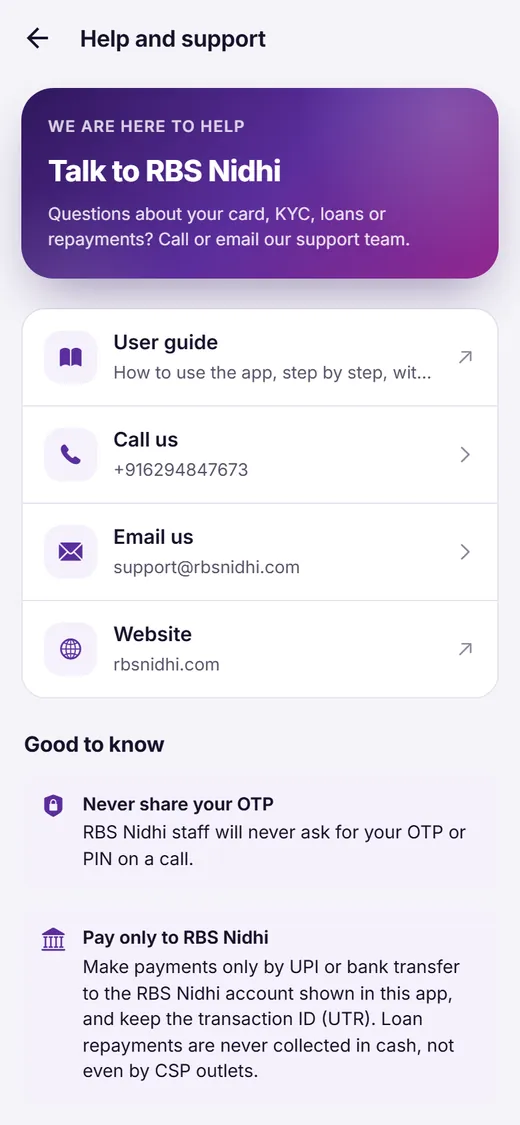
More questions about cards and loans? See our FAQs, or email support@rbsnidhi.com.
Three rules that protect you
Your codes are yours alone
RBS Nidhi staff never ask for your OTP, your PIN or the code on your card kit.
Repay only into our account
Repay by UPI or bank transfer to the RBS Nidhi account shown in the app: never in cash, and never to a CSP outlet, a Leader or anyone else.
Use only the real app
The app opens at app.rbsnidhi.com with nothing to download, and our SMS come from RBSLTD.
We are here to help you
Talk to a loan expert, write to us, or visit our registered office in Kolkata.
Registered Office
You may write to us at
RBS Nidhi Limited
Flat No 612, Blk 1, Qube, Plot IID/31/1
Newtown, Kolkata – 700135
West Bengal, India
Call us
Our customer helpline
+91 62948 476739:00 AM – 8:00 PM IST on all working days, including Saturday.
Email us
For any assistance, write to
support@rbsnidhi.comEmails are reviewed 10:00 AM – 7:00 PM IST, Monday to Friday.