- Home
- User guide
- For partners
The app for Leaders and CSP outlets.
How to join, confirm your customers' cards, order cards and kits, follow your customers and withdraw what you earn: what to tap on each screen.
One app, your own tabs
Partners sign in with "I am a partner". The app then shows the tabs for your role.
CSP outlet
A shop that signs up customers, sells them membership cards and helps them with the app. It earns 2% to 3% on each card it sells and 4% of each loan step its customers repay in full.
Tabs: Home · Customers · Stock · Account
Leader
Builds and supports a network of CSP outlets. A Leader earns 5% of the card sales of the outlets in the network, plus a weekly bonus of 0.01% to 0.20% by the level the network reaches.
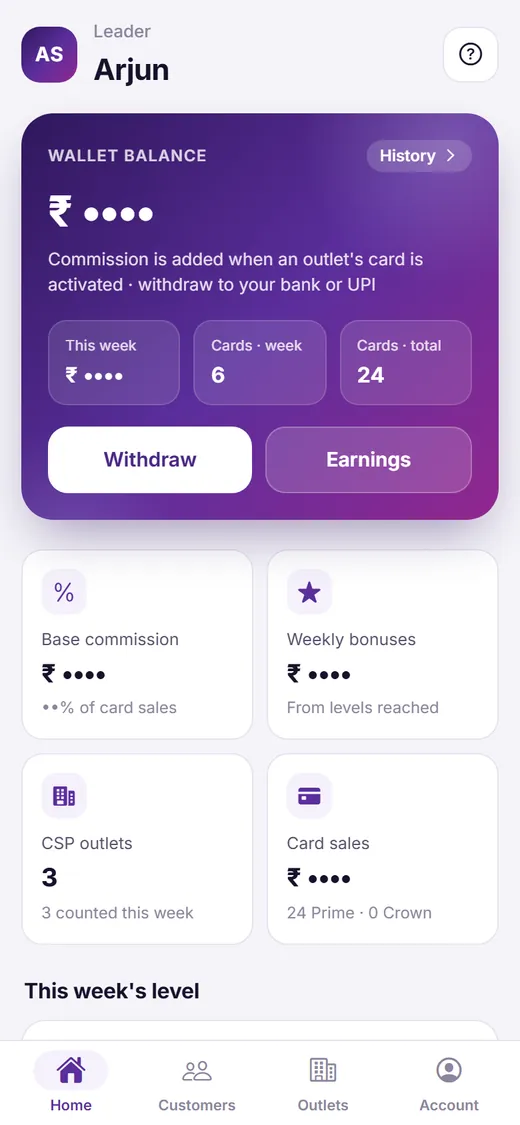
Tabs: Home · Customers · Outlets · Account
The pictures in this guide are taken from the app with made-up names. Amounts and payment details are hidden in them: your app shows your own. The full terms are on the CSP outlet and Leader pages.
Join as a partner
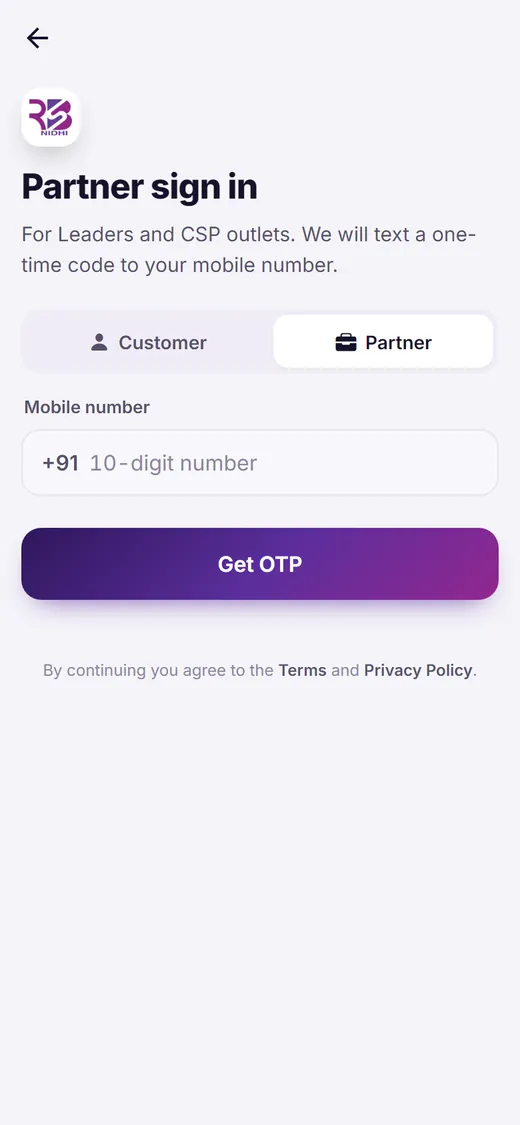
The app runs in your phone's browser at app.rbsnidhi.com, with nothing to download. You sign in with your mobile number and a one-time code.
-
1
Choose “I am a partner”
Open app.rbsnidhi.com in Chrome (Android) or Safari (iPhone) and tap I am a partner. The same mobile number can have a customer account too.
-
2
Sign in with your number
Enter your 10-digit mobile number and tap Get OTP. Type the 6-digit code we text you and tap Verify and continue.
-
3
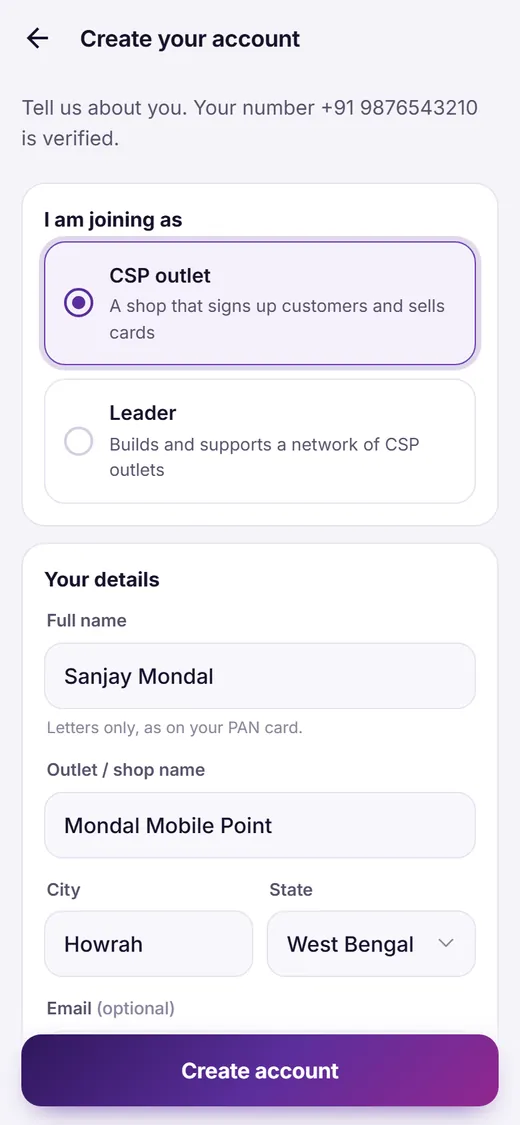
Create your partner account
Under I am joining as, choose CSP outlet or Leader. Enter your full name as it is on your PAN card, your city and state, and your email if you like. A CSP outlet also gives its outlet or shop name and the 6-digit code of the Leader it joins. Tap Create account.
Your Home and Account
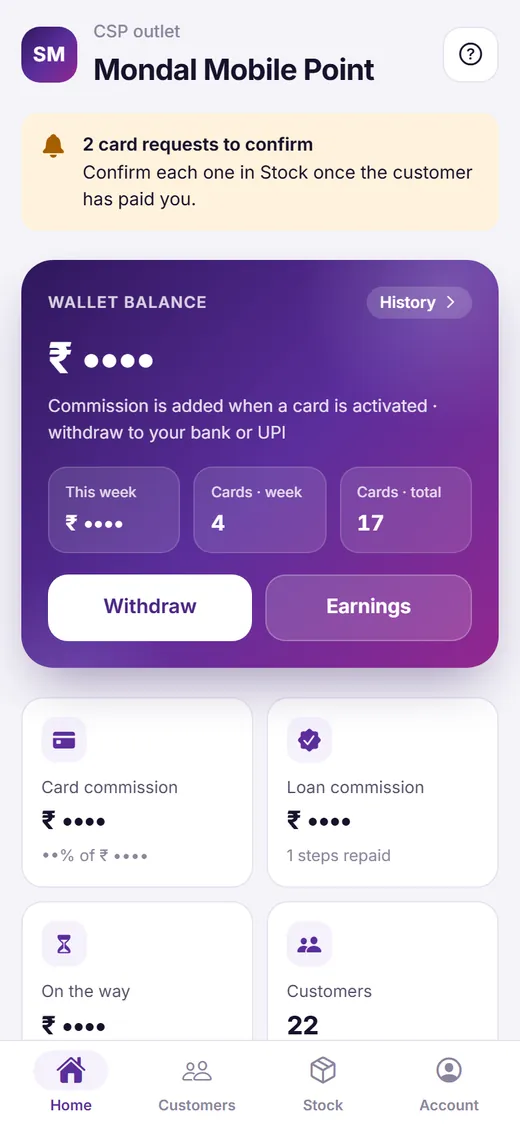
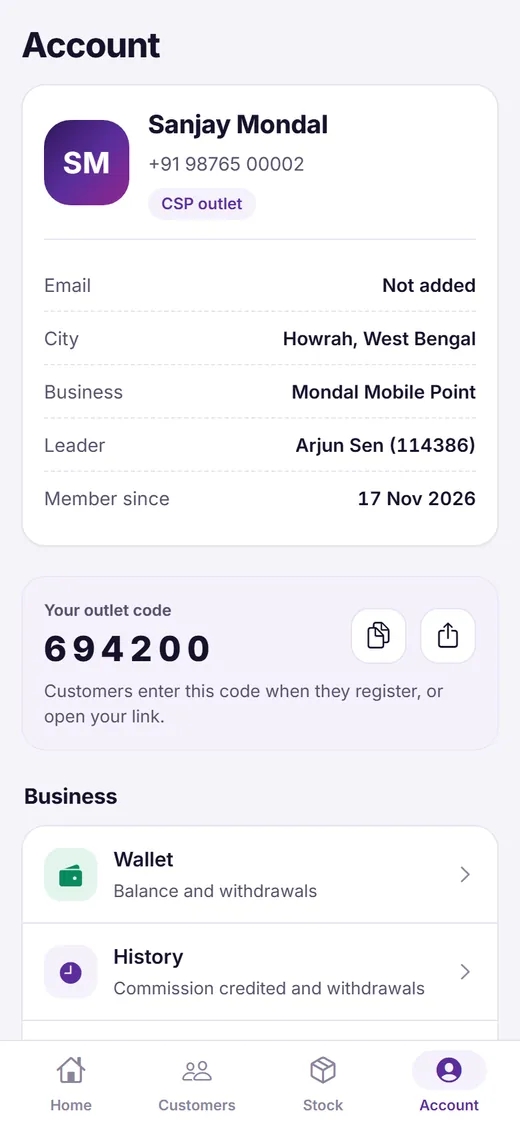
Home shows your wallet, your sales and your customers at a glance. Four tabs at the bottom take you everywhere; pull a screen down to refresh it.
-
1
Card requests to confirm
When customers ask you for a card, a note at the top says how many requests wait. Tap it to go to Stock.
-
2
Your wallet
The balance is the commission you have earned and not yet withdrawn. Tap Withdraw or Earnings, or History for every entry.
-
3
Your figures and stock
Card commission, loan commission, commission still on the way, your customers, and the cards in your stock with an Order cards button.
-
4
Your code and link
Copy your outlet code, or tap the share button to send your link. Customers who register with it are added to your outlet. The Account tab has your code too, with Wallet, History, Earnings, Help, this partner guide and Sign out.
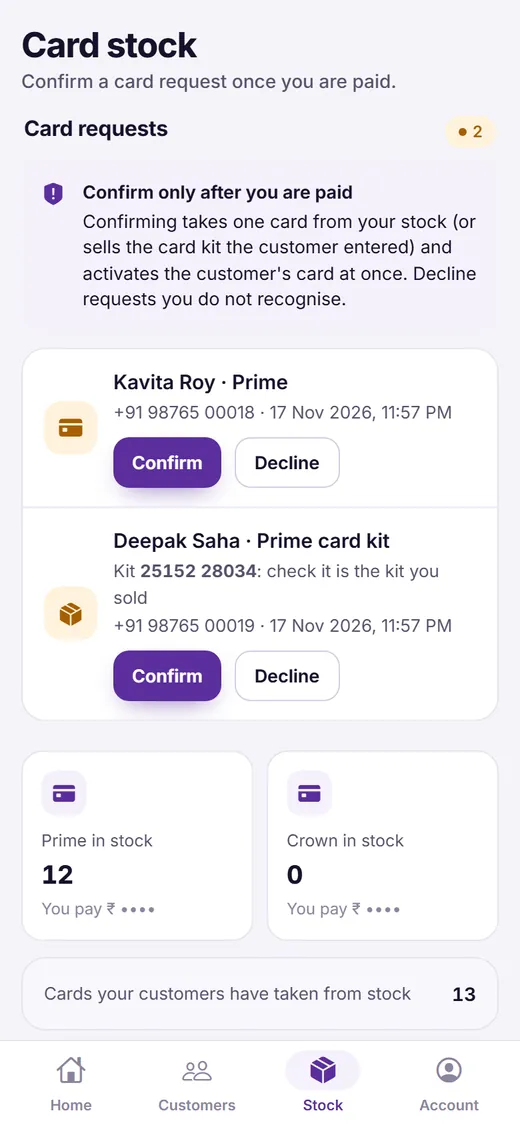
Confirm your customers' cards
A customer can ask for a card from your stock, or enter a card kit they bought from you. Their card is activated only when you confirm it.
-
1
Take the payment
The customer pays you for the card or the kit at your outlet.
-
2
Open Stock
Under Card requests you see each customer's name, phone number and card. For a card kit, check that the kit number is the one you sold.
-
3
Tap “Confirm”
Tap Confirm and confirm again. One card leaves your stock (or the kit is sold), and the customer's card is active at once.
-
4
Or decline it
Not paid, or you do not know the customer? Tap Decline. You can add a reason, which the customer sees; they can pay RBS Nidhi in the app instead.
Order cards or kits
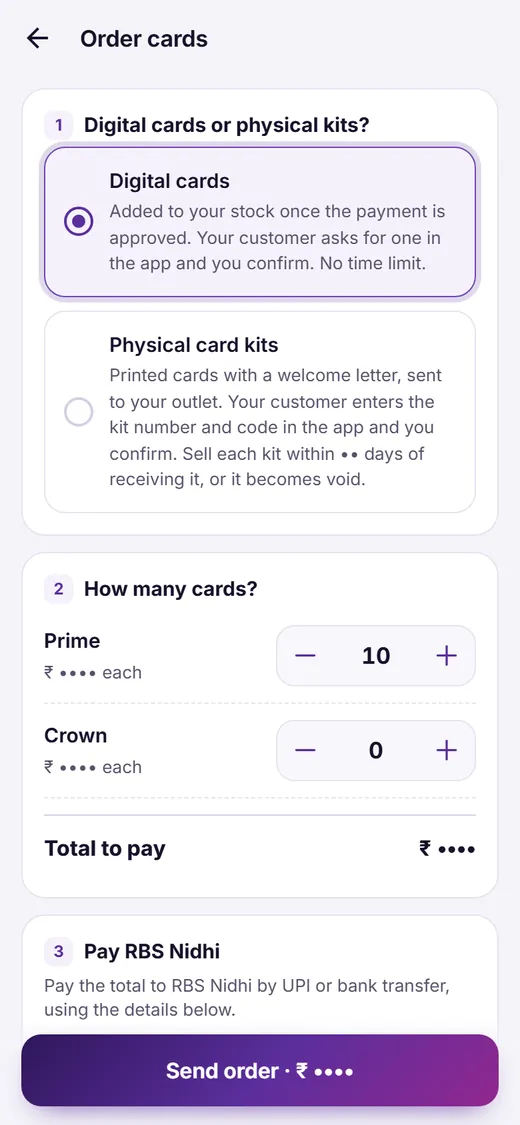
CSP outlets buy membership cards from RBS Nidhi to sell to their customers: as digital cards in the app, or as printed card kits.
-
1
Tap “Order cards or kits”
It is in the Stock tab, and Order cards is on Home.
-
2
Digital cards or physical kits
Digital cards join your stock once the payment is approved, with no time limit. Physical card kits are printed cards with a welcome letter, sent to your outlet: you sell each kit within 30 days of receiving it, or it becomes void.
-
3
Choose how many, then pay
Set the number of Prime and Crown cards; the app shows your price and the total. Pay RBS Nidhi by UPI or bank transfer to the account shown, enter the UTR / transaction ID, add a screenshot or receipt, and tap Send order.
-
4
We check the payment
The order shows Being checked, then Approved: digital cards are added to your stock, and kits are sent to you in a parcel. An approved order has an Invoice button.
Sell card kits
A card kit is a printed membership card with a welcome letter. Your customer activates it in their app, and you confirm it.
-
1
Confirm the parcel
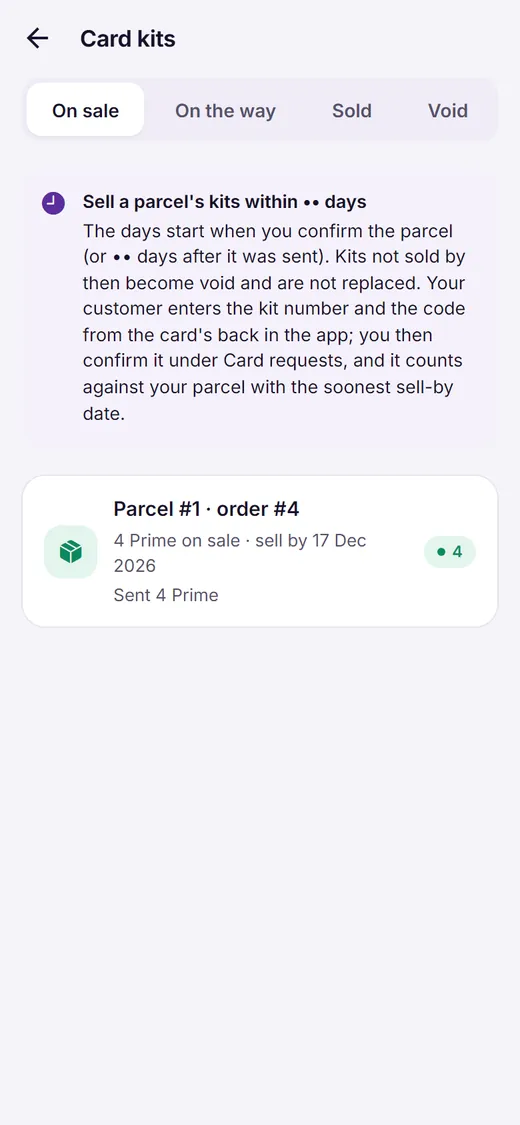
When a parcel arrives, count its kits, then tap I received this parcel under Parcels to confirm in Stock. A parcel you do not confirm counts as received 7 days after it was sent.
-
2
Sell each kit in time
Sell a parcel's kits within 30 days of receiving it. Kits not sold by then become void and are not replaced.
-
3
Confirm the customer's kit
The customer enters the kit number and the code from the back of the card in their app. The request appears under Card requests: check the kit number, and confirm it once they have paid you.
-
4
See your kits
Card kits shows them as On sale, On the way, Sold and Void, with each parcel's sell-by date.
Follow your customers
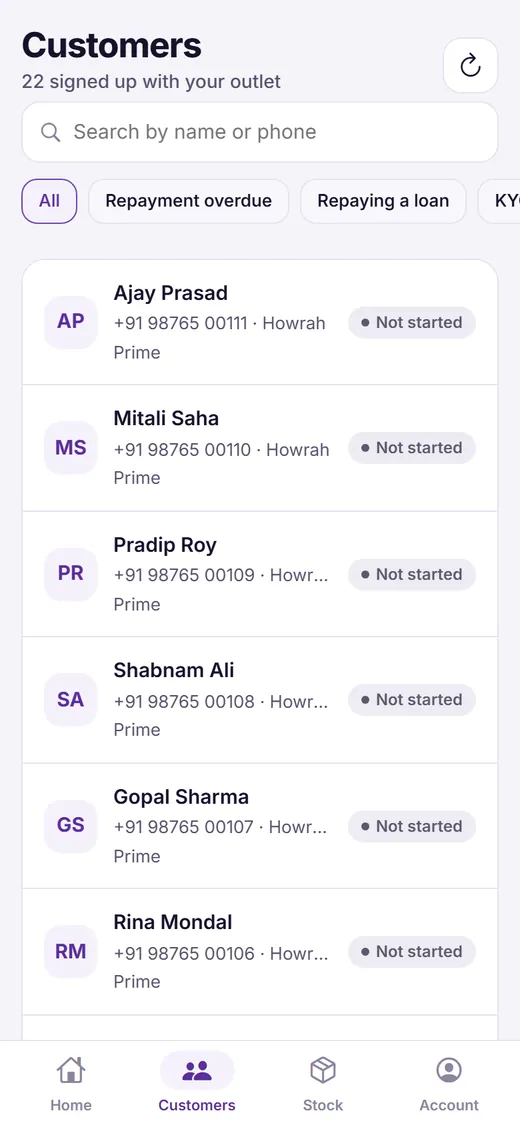
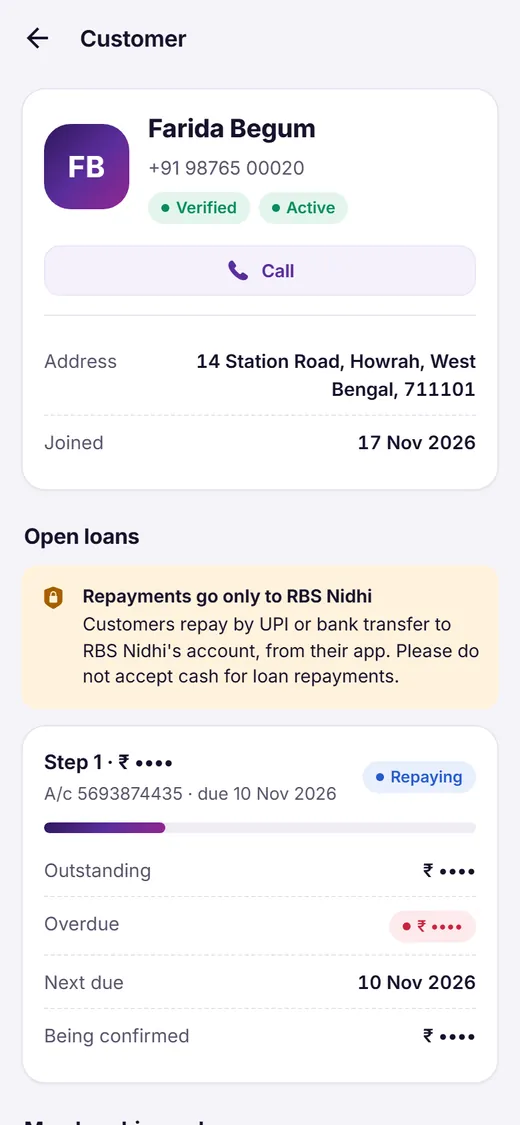
The Customers tab lists everyone who signed up with your outlet, so you can help them through their card, KYC and loans.
-
1
Find a customer
Search by name or phone, or tap a filter such as Repayment overdue, KYC needs attention or No card yet.
-
2
Open their details
You see their card, KYC, open loans, what is outstanding and the next due date, and you can call them.
-
3
Remind them, never collect
Customers repay RBS Nidhi from their own app. Remind them before a due date, and help them if they are stuck, but never take money for a loan.
Earnings and withdrawals
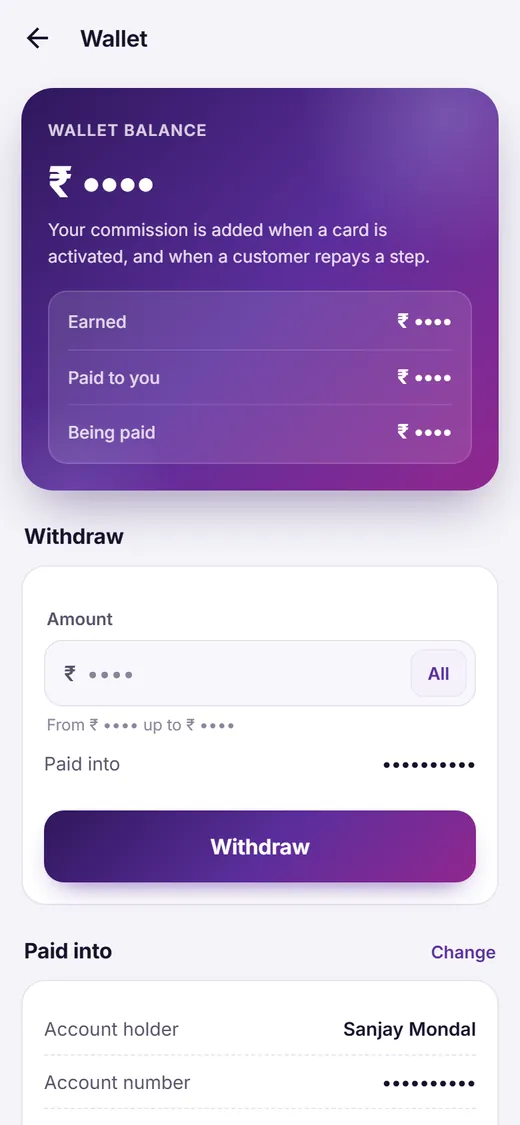
Your commission goes into your wallet in the app, and you withdraw it to your own bank account or UPI ID.
-
1
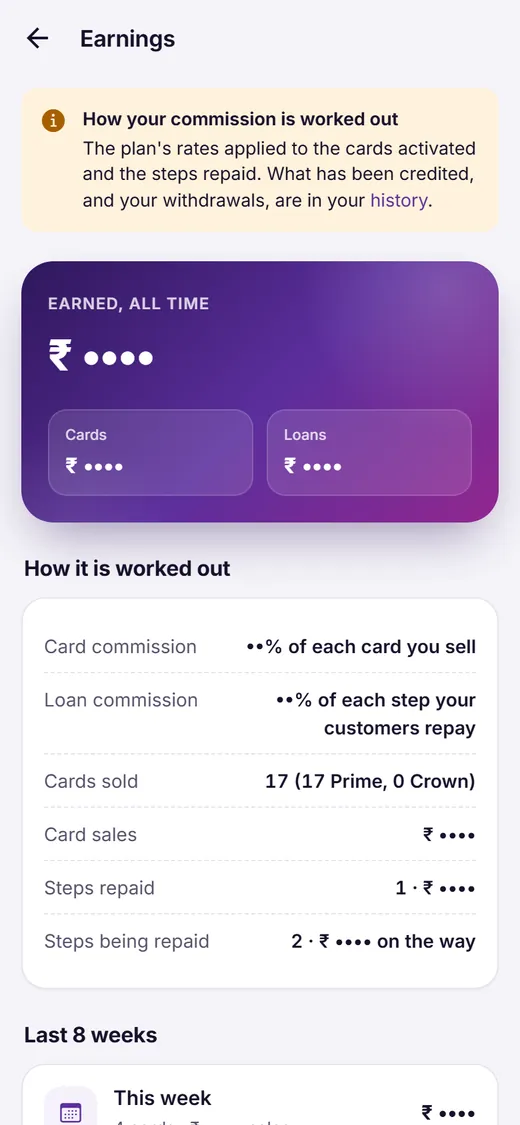
How you earn
A CSP outlet earns 2% to 3% on each card it sells, added when the customer's card is activated, and 4% of each loan step its customers repay in full. A Leader earns 5% of the card sales of the outlets in the network, and a weekly bonus when the week ends.
-
2
Add your bank account or UPI ID
Open Wallet. Under Paid into, choose Bank account or UPI ID, enter the details as your bank has them and tap Save. Tap Change to update them later.
-
3
Withdraw
Enter an amount from ₹10, or tap All, and tap Withdraw. It shows Being paid until RBS Nidhi pays it into your account, and we send you an SMS. Until then you can cancel it.
-
4
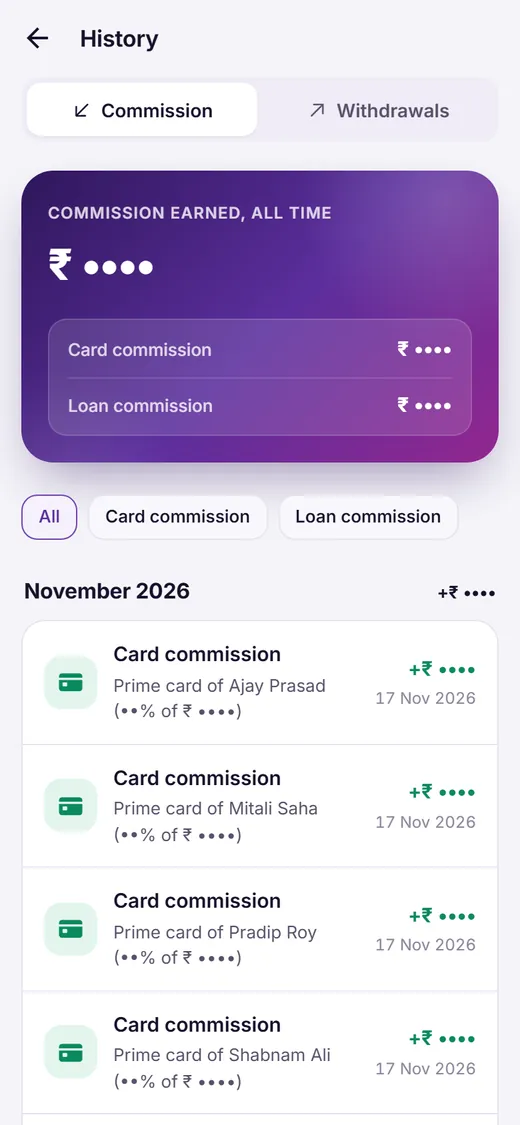
Check your history
History lists every commission and withdrawal, month by month. Earnings shows how your commission is worked out, week by week.
For Leaders
A Leader's app shows the network: the CSP outlets that joined with your code, and their customers.
-
1
Share your Leader code
On Home or Account, copy your code or tap the share button. New CSP outlets that join with it are added to your network.
-
2
Follow your outlets
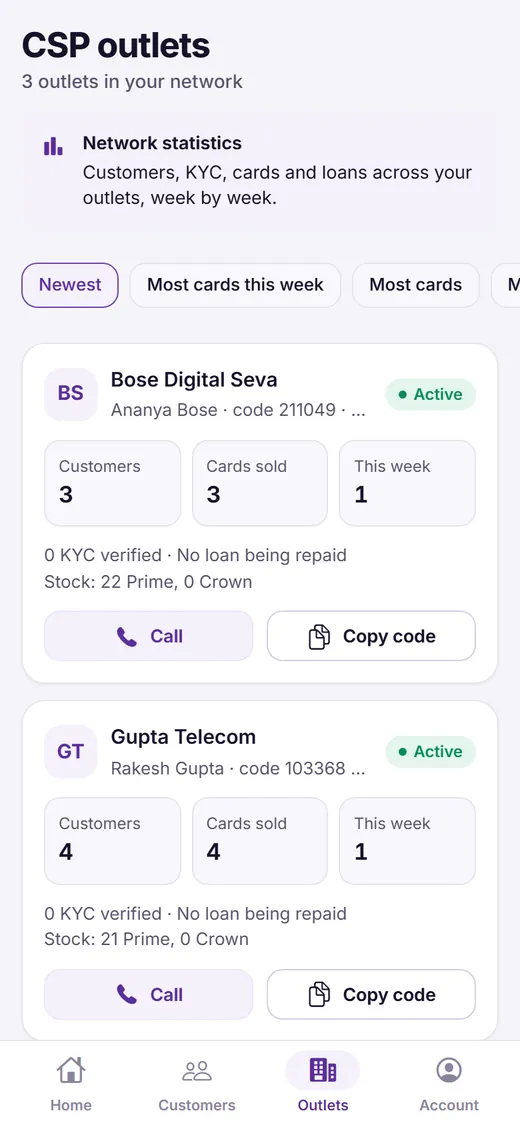
The Outlets tab lists each outlet with its customers, cards sold and this week's sales. Sort by Most cards this week or Overdue first, and call an outlet or copy its code.
-
3
See the whole network
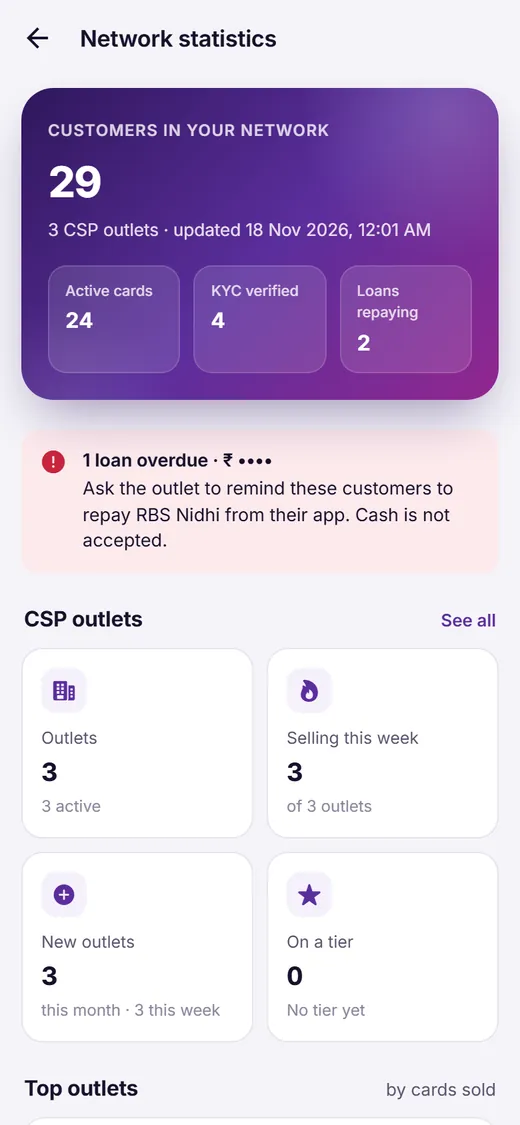
Network statistics shows customers, KYC, cards and loans across your outlets, including loans overdue. Ask the outlet to remind those customers.
-
4
Reach this week's level
This week's level on Home shows how many more outlets and cards the network needs for the next level's bonus.
-
5
Your own membership
A Leader can have one membership card and take loans like a customer: tap Get my membership card on Home. Back to my Leader account brings you back.
If something does not work
The most common questions from partners, and what to do.
Every CSP outlet joins under a Leader. Ask the Leader who introduced you for their 6-digit code, or open the link they sent you. Not sure who that is? Call us on +91 62948 47673.
Pull the Stock tab down to refresh it. Check that the customer registered with your outlet code. A request expires after 7 days; the customer can then ask again, or pay RBS Nidhi in the app.
Our team checks every payment against our bank account, and we let you know when the order is approved. If it is not approved, the order shows why: send a new order with the right UTR and receipt.
Confirm the parcel, then tell RBS Nidhi at once on +91 62948 47673 with the parcel number. Missing kits are sent again.
Your balance must be at least ₹10, your bank account or UPI ID must be saved under Paid into, and only one withdrawal can wait at a time. A CSP outlet also needs 20 cards sold in the last 15 days; the Wallet shows your count.
Do not take it. Ask them to repay from their own app, by UPI or bank transfer into RBS Nidhi's account shown there. Loan repayments are never collected in cash, not even by outlets.
Pull the screen down to refresh it. When the app says A new version of RBS Nidhi is ready, tap Reload. If it still does not load, check your internet connection and open app.rbsnidhi.com again.
Helping a customer with the app? Our customer guide shows every step. Questions: email support@rbsnidhi.com.
Three rules for every partner
Confirm only after payment
Confirm a card request or a card kit only once the customer has paid you. Decline any request you do not recognise.
Never collect loan repayments
Customers repay RBS Nidhi only by UPI or bank transfer, from their own app. Never take cash or any payment for a loan.
Keep your codes private
Never share your OTP. RBS Nidhi staff will never ask for it, on a call or anywhere else.
We are here to help you
Talk to a loan expert, write to us, or visit our registered office in Kolkata.
Registered Office
You may write to us at
RBS Nidhi Limited
Flat No 612, Blk 1, Qube, Plot IID/31/1
Newtown, Kolkata – 700135
West Bengal, India
Call us
Our customer helpline
+91 62948 476739:00 AM – 8:00 PM IST on all working days, including Saturday.
Email us
For any assistance, write to
support@rbsnidhi.comEmails are reviewed 10:00 AM – 7:00 PM IST, Monday to Friday.